Manage Alerts
As with creating alerts, there are also two ways to manage them as well. The first, and easiest way is via the email alert notification itself. The second way is using the site contents page.
Via the Site Contents Page
To manage alerts:
- From within the page or site your alert is on, click the Settings Menu:
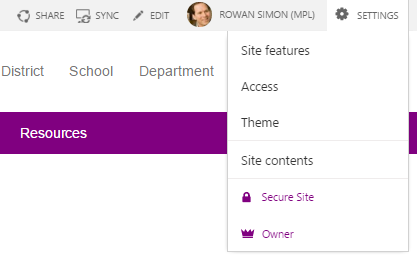
- Click Site contents to access the Site Contents page. Here, you will find a full list of Apps available on the site.
- Find and click the app you have set up the alert on. (e.g., Shared Documents as shown in Add an Alert via the Site contents, above).
- On the Shared Documents page, select the checkbox beside a file.
- Click the LIBRARY or LIST tab on the top left:
- On the LIBRARY (or LIST) tab, click Alert Me then choose Manage My Alerts.
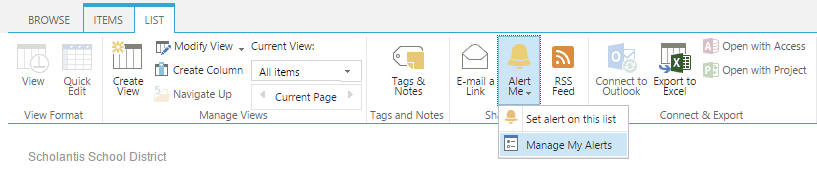
- You will be taken to the My Alerts on this Site page. Click that link to access the page.
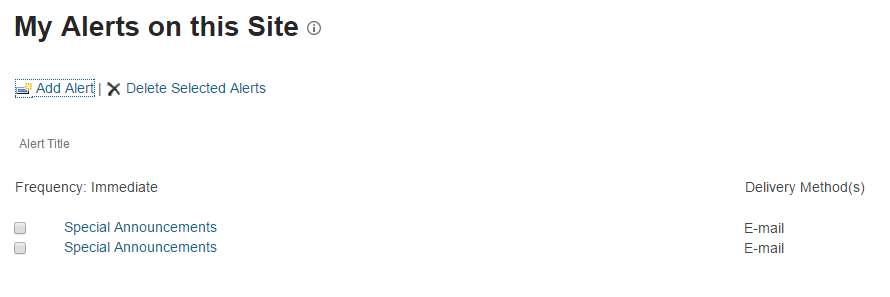
- To delete an alert, select the checkbox beside the alert and then click the Delete Selected Alerts link.
- To manage an alert, click on the alert link you wish to manage to access the Edit Alert page.
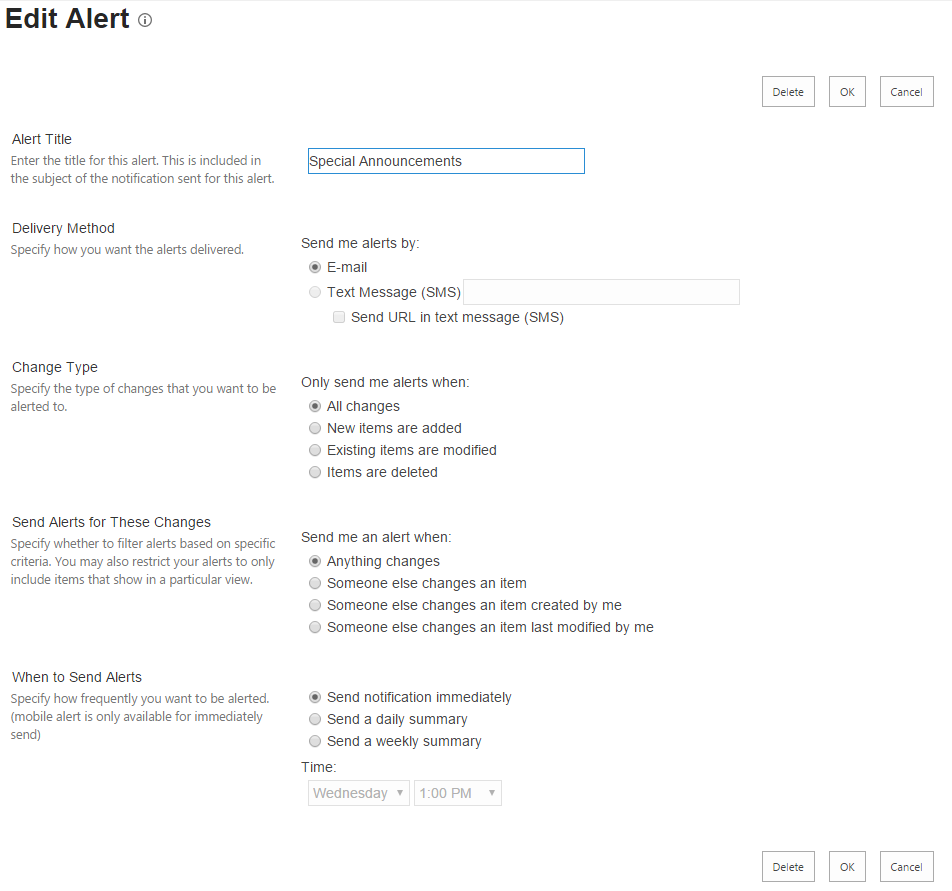
Tip: See the topic Using the Scholantis Bell icon for a list of fields and what they mean.
- Edit the alert and click the OK button to save your changes
Using the Alert Email Link
Each alert sent to your email inbox has a link to the My Alerts on This Site
- You will be taken to the My Alerts on this Site page.
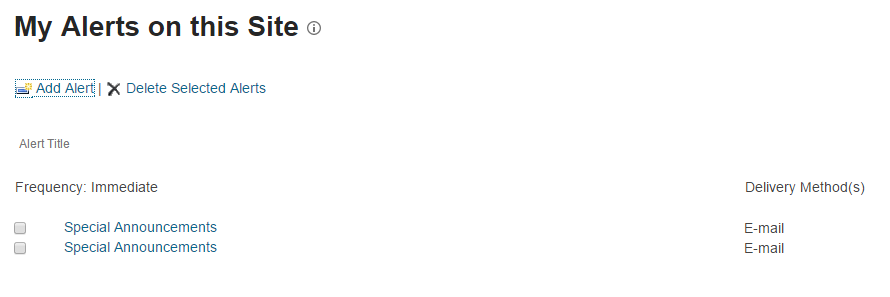
- To delete an alert, select the checkbox beside the alert and then click the Delete Selected Alerts link.
- To manage an alert, click on the alert link you wish to manage to access the Edit Alert page.
Tip: See the topic Using the Scholantis Bell icon for a list of fields and what they mean.
- Edit the alert and click the OK button to save your changes.